Featured Post Today
print this page
Latest Post
Showing posts with label mobile-software. Show all posts

How to take screenshot on Samsung mobiles

At present, the demand for viewing photos on the Internet has become more and more prevalent and when surfing web with mobiles, you want to set them as wallpaper. There is a very simple and effective method – taking screenshot.


In this article, we only mention about Android devices of Samsung.

Devices with physical home button

Many smart phones of Samsung have physical Home button, you can press Home and Power button combination to take screenshot. By pressing the two buttons until the screen edge flashing, you will hear the capturing sound. You will receive the notification that screenshot has been taken and saved in image format.
Devices with no physical home button

Some devices of Samsung (e.g. Galaxy Note 10.1 and Galaxy Camera) do not have physical home button. Let’s use Power and volume down button combination, hold the two buttons until the device takes screenshot.
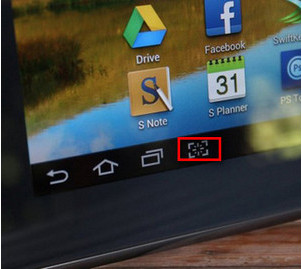
Some devices such as Galaxy Note 10.1 have a quick start button which can be set to take screenshot. On Galaxy Note 10.1, this quick start button is besides the Multitasking button on the virtual navigation bar.
Devices with S Pen button

On Samsung devices with S Pen button such as Galaxy Note, you can use S Pen button to take screenshot. You only need to press and hold S Pen button, and then touch the top of the pen on the screen until the entire screen flashes.
Normally, when taking screenshot with S pen, the photo will be opened immediately for users to edit. Remember to save the photo after editing.

Devices supporting hand moves

Many smart phones of Samsung such as galaxy S3 and galaxy s4 also allow taking screenshot by clawing the hand on the screen of the device. To use this method, enter Settings >Motion, activate "Palm swipe to capture".
Therefore, we have instructed you how to take screenshot on Android devices of Samsung. Hope that you can work well with this feature and have beautiful photos.
0 comments

Restore original settings with Samsung Galaxy S5

You are using a Galaxy S5 and keen on hacking it. However, it is unexpected that you have forgot the password or simply want to put it into the original state. In this article, we will help you restore the original state of your mobiles when you set protected password with your finger print.
The restoration of Galaxy S5, in fact, is not as difficult as many people may think. Firstly, to ensure that all your data are safe, you need to move your data to your memory card or PC and keep your mobile’s battery level always above 50%.

You can use two following methods:


Method 1: Restore original settings

This method is only applicable when you are still able to manipulate on the touch screen of the mobile and will have no effect when your mobile is suspended or you lose password for logging in to the mobile.

1. Enter Setting by dragging the Notifications bar, select the symbol of Setting which is the gear symbol as in the image.
2. In USER AND BACKUP section, select Backup and reset
3. Next, in PERSONAL DATA section, select Factory data reset.
In addition, you can also type *2767*3855# to restore the original setting for Samsung Galaxy S5.

Method 2: Hard reset

For mobile with forgotten password (including both touch screen and figure print) or suspended logo and fail to restart, you need to use this method.

- Firstly, turn off your mobile or remove and reinstall the battery.

- Use button combination: Simultenously press and hold 3 buttons Home + Power and Volume Up and wait for Hard Reset screen to be displayed.

- Continue to use Volume button and move up and down to select Wipe data/Factory reset and press Power button to select.

- Afterward, select YES -- delete all user data and continue to press Power button. Your mobile will restore the original setting of your mobile and return its initial state.

Therefore, through the two above common methods, you can restore the original settings for your Samsung Galaxy S5. In the usage process, if you see that your mobile is suspended or too slow, you can use the two above methods to restore the original settings for your mobile.
0 comments

Use Reddodo to create wallpapers and avatars for mobiles

You like using GIF animated images as wallpapers and avatars for your mobile. You expect to have wallpapers and avatars imbued with your own marks. Let’s visit the website Reddodo.com to create an animated wallpaper or avatar bearing your name. 

Reddodo.com is a free website which helps you create original wallpapers and avatars for your mobile. The following article will guide you through steps to use reddodo.com to create wallpaper or avatar.


Step 1: Log in website: http://reddodo.com/ and click to select a wallpaper that you like.
Step 2: Establish resolution and name the image.
- Select your mobile phone: you select name in accordance with your mobile, including producer and model.


Note: in case, you mobile does not belong to section 1, you only need to select Generic and resolution of your mobile’s screen.


- Enter a text: Input a text that you want it to appear in your image (a maximum of 18 characters). Tick Static wallpaper if you want to create a static wallpaper.


Then click Refresh preview to view the result.

Step 3: Right click the image that has been created and select Save image as... to save the created image.
Thus, with several simple steps, you have got a wallpaper or avatar for your mobile. Here is the result.
Wish you success!
0 comments

Synchronize utilities from Android to iOS

It is sometimes inconvenient when owing both Android and iOS devices because of differences in contact or mail addresses. To overcome this situation, you can refer to method to synchronize utilities from Android to iOS.
You want to synchronize data between Android and iOS devices but you have not known whether this function exists or not?

The answer for you will be “yes” and let’s refer to the following article about synchronizing utilities from Android to iOS.
Note: Before synchronizing the two devices, remind to copy data from the devices to computer.


SYNCHRONIZE CALENDAR AND MAIL FROM ANDROID TO IOS

Step 1: Enter Settings, select "Mail, Contacts, Calendars" and then select Account
 Step 2: Select Add Account
Step 3: Next, select Gmail and fill in sufficient information such as name, email, etc.
 Step 4: Select Next and Gmail will check your detailed login information.
Wait for several minutes so that the synchronization process to be completed.
 Now, you can access the application on iOS device.

SYNCHRONIZE CONTACTS FROM ANDROID TO IOS
Step 1: Similarly, enter Settings, select "Mail, Contacts, Calendars" -> Add Account -> Other.
Step 2: In contacts section, select Add CardDAV Account. Continue to fill in some information such as:

- Server: google.com

- Username: Your Gmail address

- Password: Password to connect with Gmail address. Click Save to complete.
Through this article, you may have been able to imagine as well as understand how to synchronize utilities from Android to iOS. The synchronization of data between two devices is not too complicated. 
Wish you success.
0 comments

Tips to boost your Android up

It is the truth that every operating system will work more and more slowly after a long time using. So how can we do to improve the running speed of your device? Today,we will give you some tips to boost your Android device up.
 You can practice following steps to make your device work more smoothly.


Uninstall or deactivate unnecessary programs.

Your device always has one particular storage space. Over time use, you store photos, music, video, apps, games ... All will occupy much of your storage space.
Therefore, to improve working speed, please clean up your storage space by deleting unnecessary data, especially long day game apps you do not need.
To remove unneeded applications by going to Settings select Apps to choose the application you want to uninstall. Note that you cannot uninstall applications that manufacturers pre-installed
On the line that supports external memory card, you can absolutely move data such as music, photos, video ... to your memory card to free up space in the machine.
There are a number of games and software also allows you to move to the installation on memory cards. You do the same as above by select Move to SD
Minimize Widget and animated wallpapers

The widget is really handy utility that helps you fast track access to your applications. But it always runs in the background and occupies a lot of RAM memory on your device. You should delete all unnecessary Widgets.
The animated wallpaper also makes your device slow down as well as your battery power. You should only install static wallpaper.

Updates of software
Manufacturers and operators often push software updates for their devices. You must download and install the latest update includes security and bug fixes to improve overall operational stability of the device.

To check whether you have the most update versions, enter Settings, choose About Phone and choose "System updates"
Root machine (deeper intervention into OS devices).

Accept the risks and advanced users can impact deep inside devices, also known as the Root machine. This will open the way for new features and even speed up works great for phone. Root machine also offers the ability to over clock the processor, install custom ROM ... However, if you are not proficient methods may damage the equipment that cannot be recovered.
0 comments
 
Support : Creating Website | Johny Template | Mas Template
Copyright © 2011. Document Information - All Rights Reserved
Template Created by Creating Website Published by Mas Template
Proudly powered by Blogger